
Getting started
- 1web account
- 1game account per character
- Windows64-bit · beta launcher
Your first session · 1/3
From your web account to Incarnam. Create your accounts, install the beta launcher and enter the game with your main character. Continue with hero mode, your first fight and your first levels.
The screenshots show the French interface. In-game button names below match that interface.
1. Register, confirm your email and sign in
Open Registration. Enter your username, email and password, confirm the password and accept the terms to create your web account.
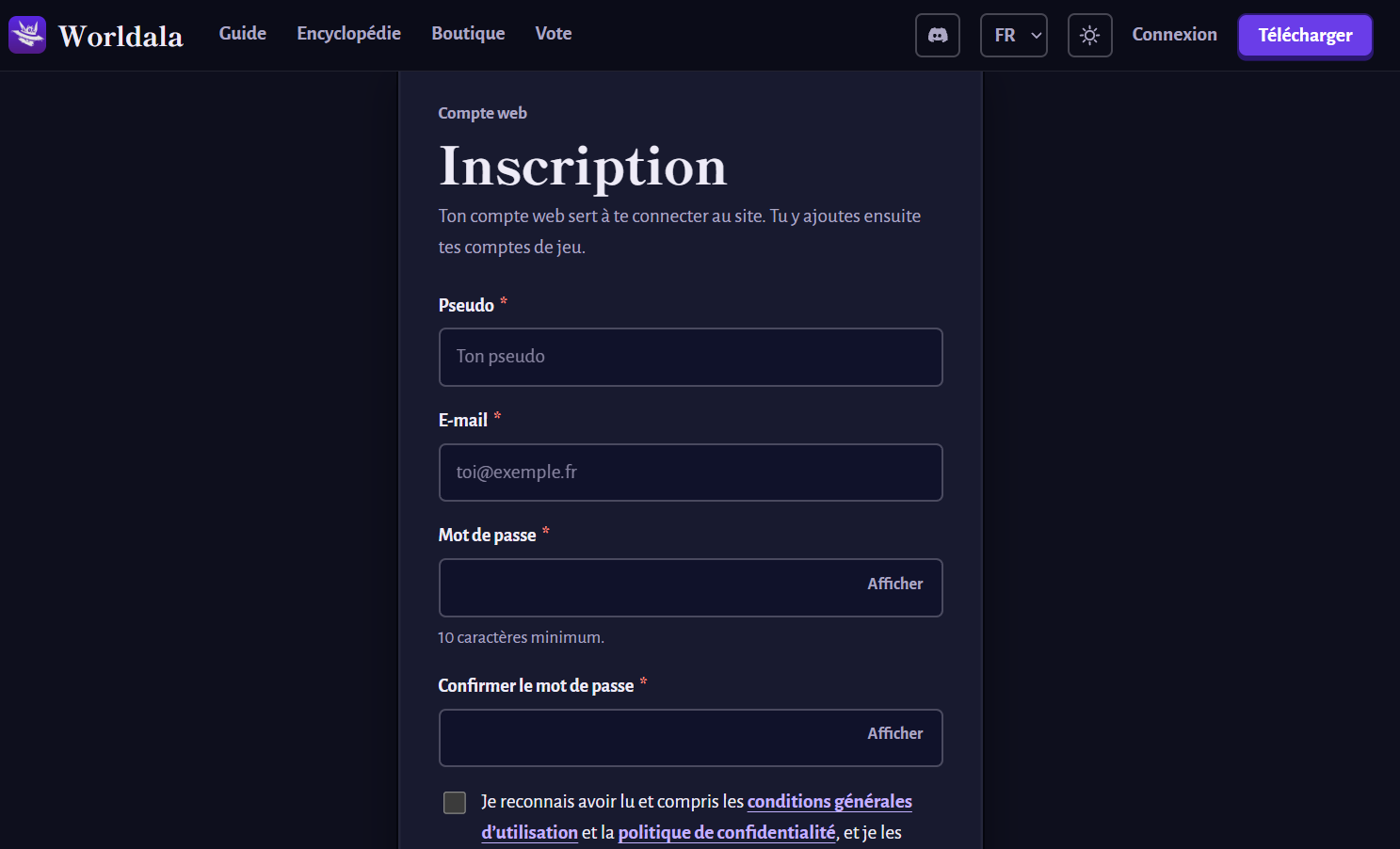
Open the confirmation email, click its link to verify your address, then sign in to the site. Check your spam folder if you cannot find the email.
2. Create one game account per character
In My account, open Game accounts and click Create game accounts.
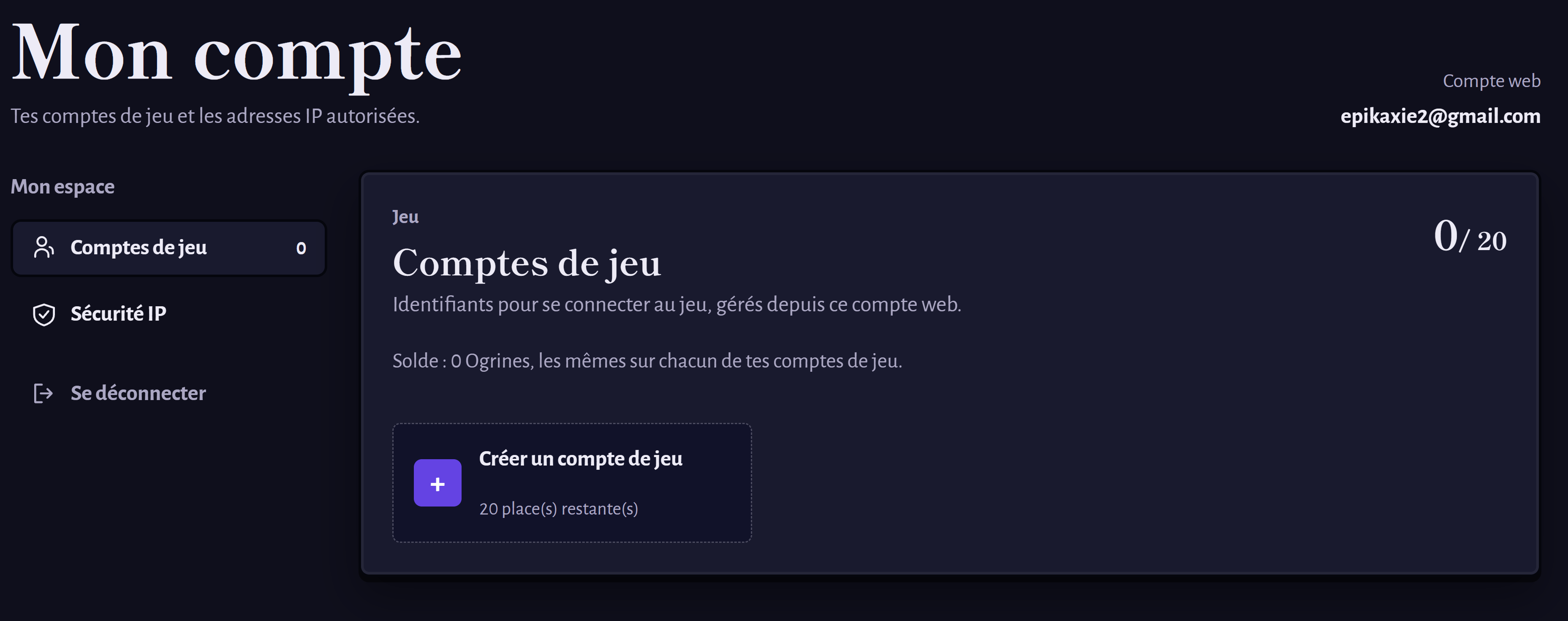
Choose how many new accounts to create, then a login (or a prefix for several logins). Check the preview, enter and confirm their password, then create them. If your main character already has an account, Prepare accounts for my heroes suggests seven additional accounts; you can adjust this number.
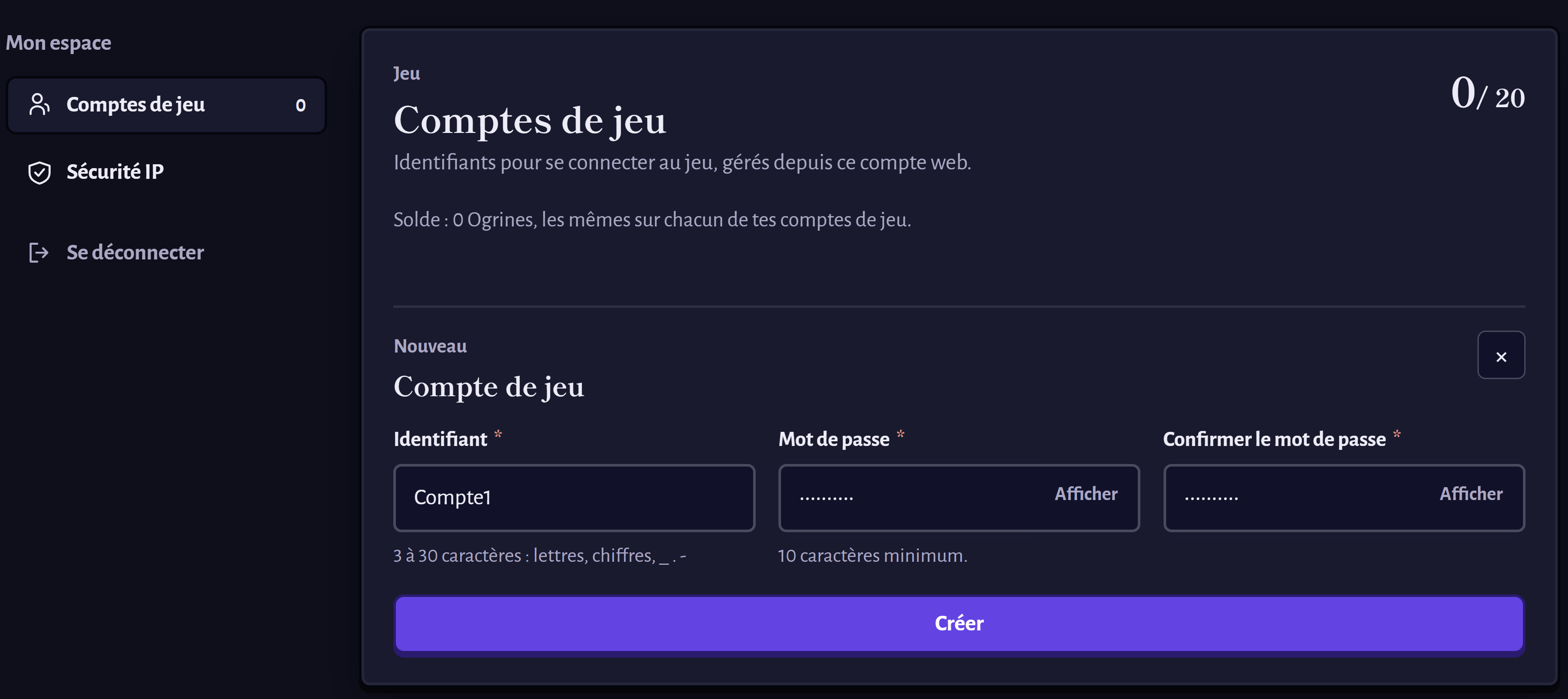
A team of 8 characters = 8 game accounts: one for your main character and seven for your heroes, all under the same web account. You can start with fewer characters. Your web account can hold up to 20 game accounts.
3. Download the beta launcher
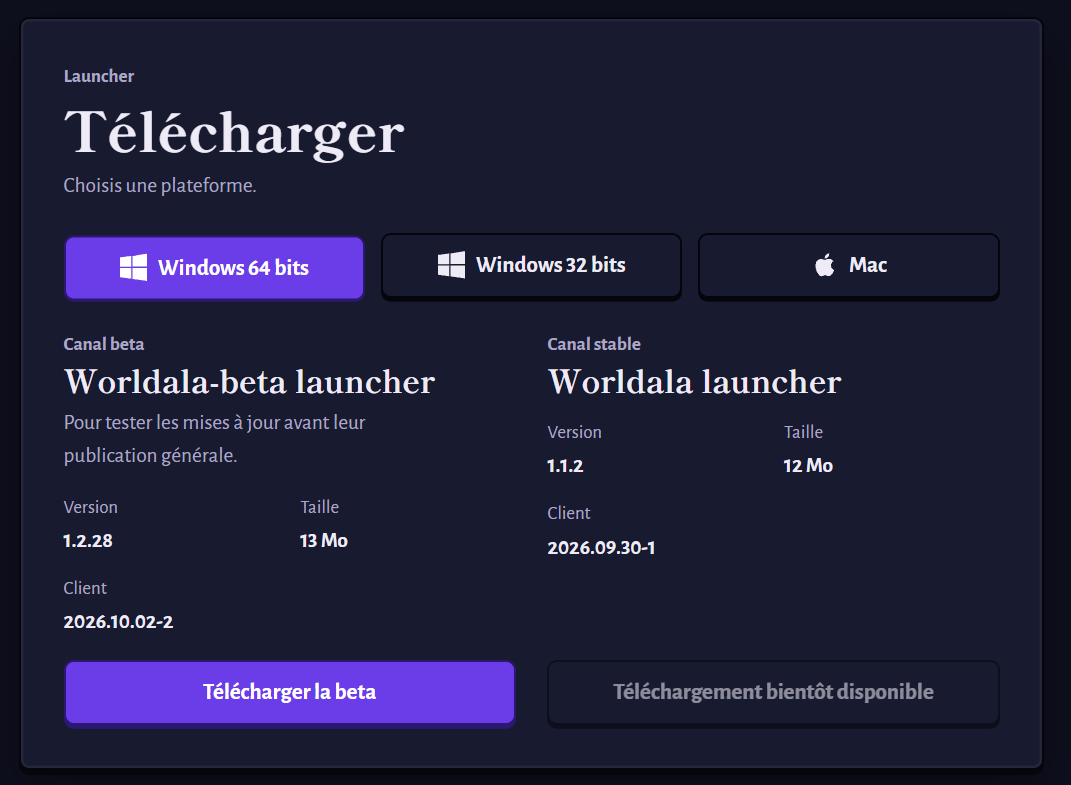
Go to Download, keep Windows 64-bit selected and click Download the beta. This is the launcher used in this walkthrough.
Chrome or Windows blocks the file?
Chrome may ask you to confirm the download manually, and Windows SmartScreen may show an alert when you launch it.
- In Chrome: open downloads with Ctrl + J, find the Worldala file and use the option offered to keep or confirm the download.
- In Windows SmartScreen: if the message says the app is unrecognized, click More info, then Run anyway, if offered.
These steps apply to the file obtained from our Download page. Keep Chrome and Windows protection enabled; if the message reports malware, stop and send the message to support.
Help: Chrome downloads · SmartScreen warning.
4. Open the downloaded application
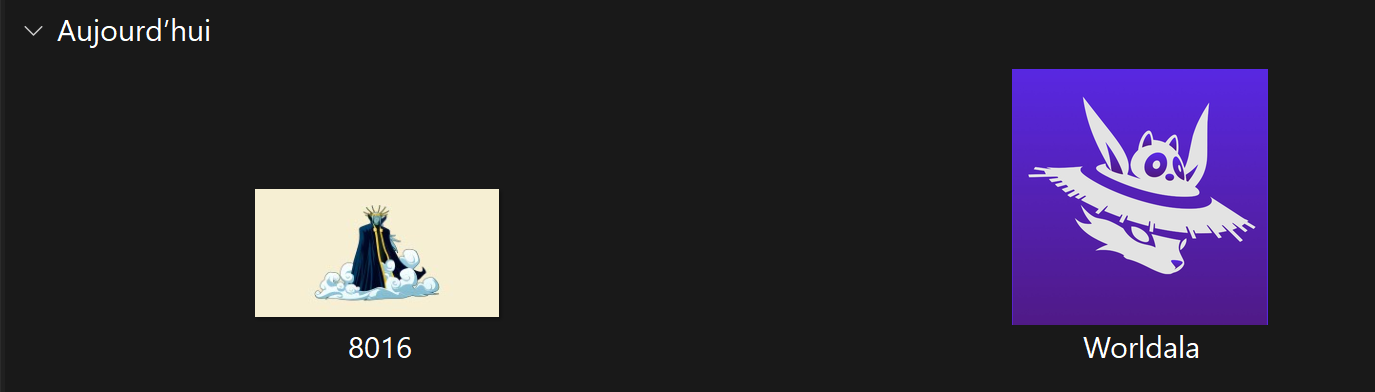
Open your Windows Downloads folder and double-click Worldala, recognizable by its purple icon. The name may include “beta” and the .exe extension.
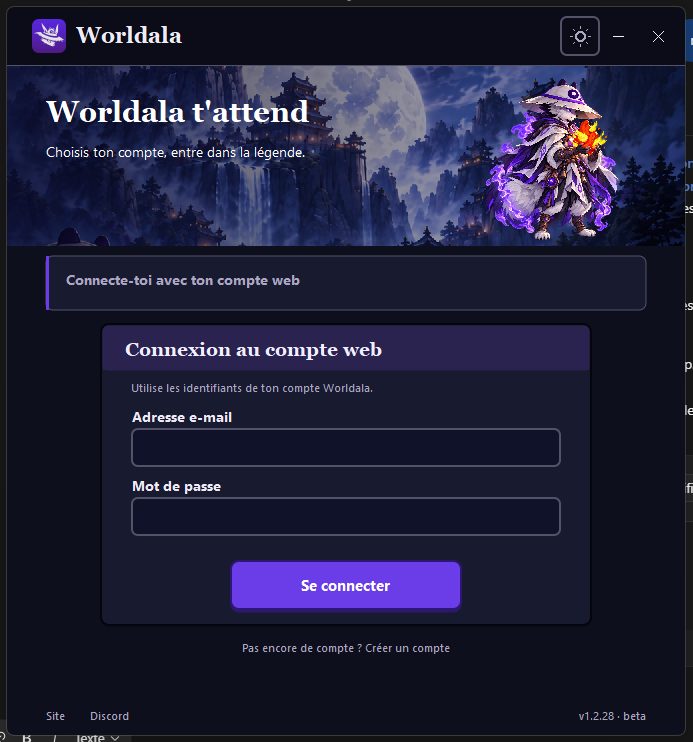
5. Sign in to the launcher and download the game
In the launcher, use your web account’s email and password, the same ones you use on the site. Wait for the game download and installation to finish, until it says ready to play.
Your game accounts appear. We recommend clicking Jouer next to your first account to make it your main character’s account. This button opens a game window and logs you in automatically.
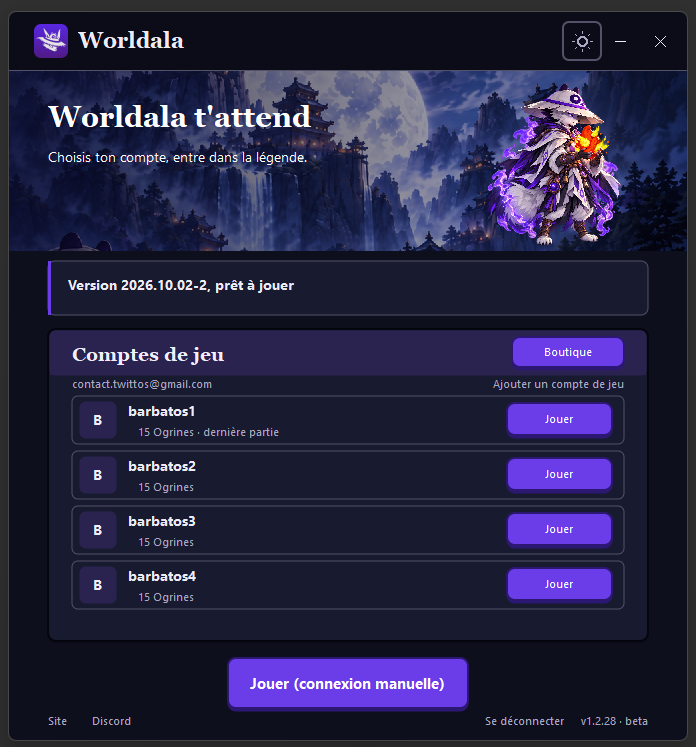
Each account’s button opens its own window. For hero mode, open only your main character’s window: create and manage the other characters in the game. “Jouer (connexion manuelle)” is for entering game credentials yourself.
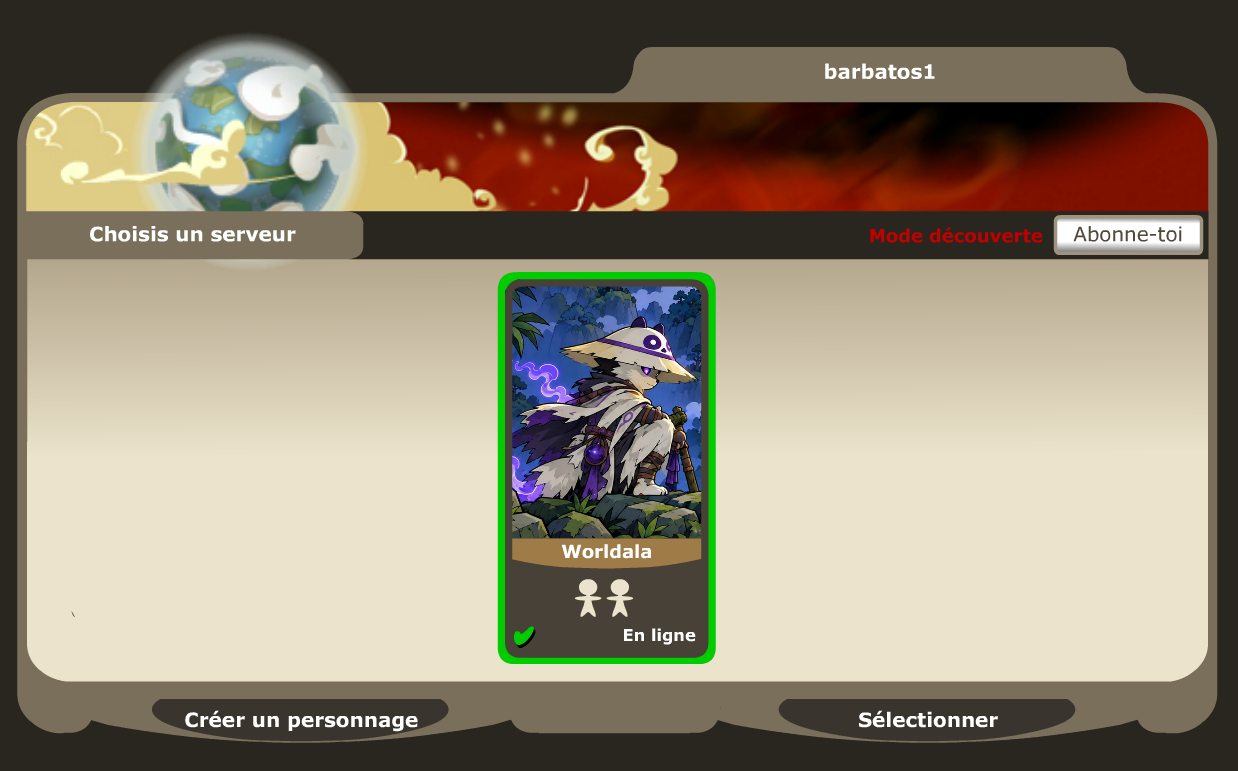
6. Choose the Worldala server
In the game window, select Worldala, then continue to character creation.
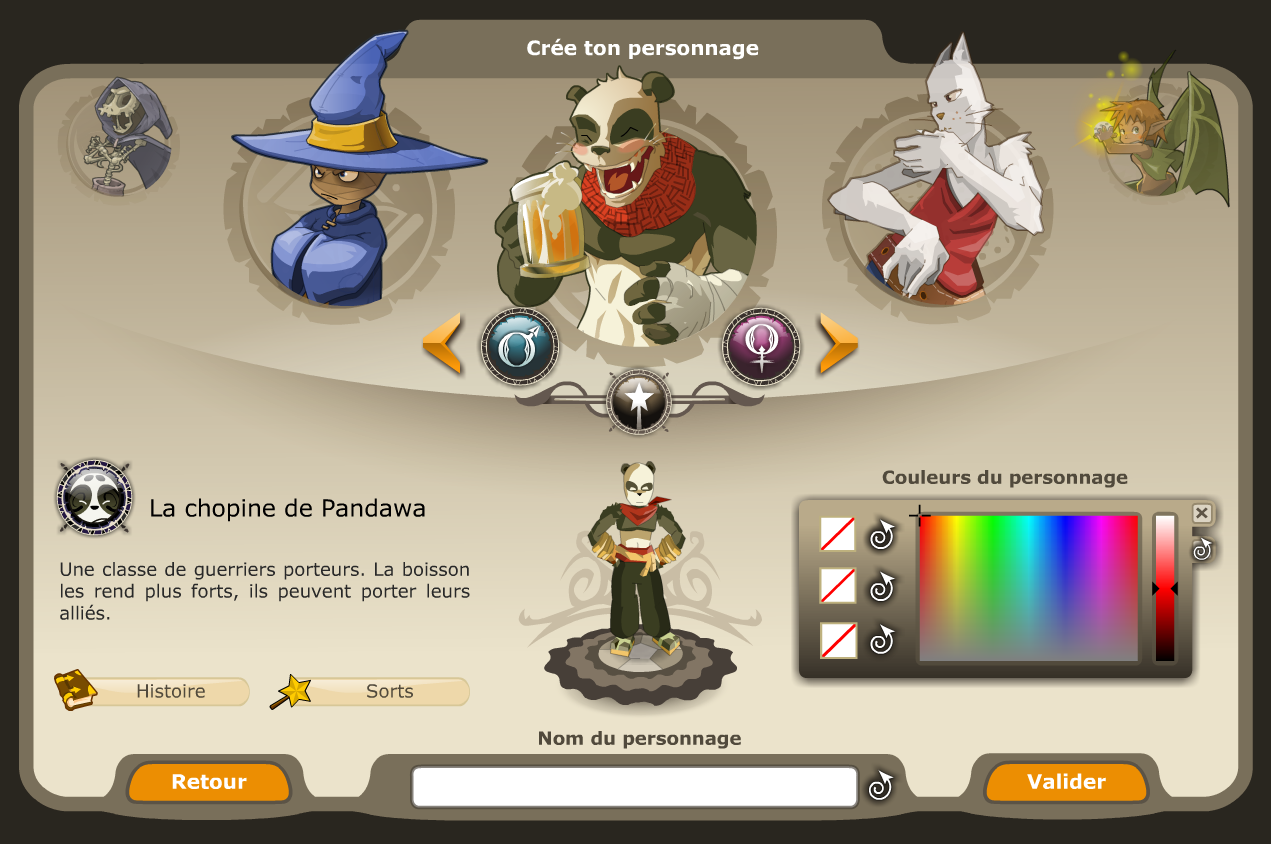
7. Create your main character
Choose their class, appearance, colours and name, then click Valider. This character will lead your team.
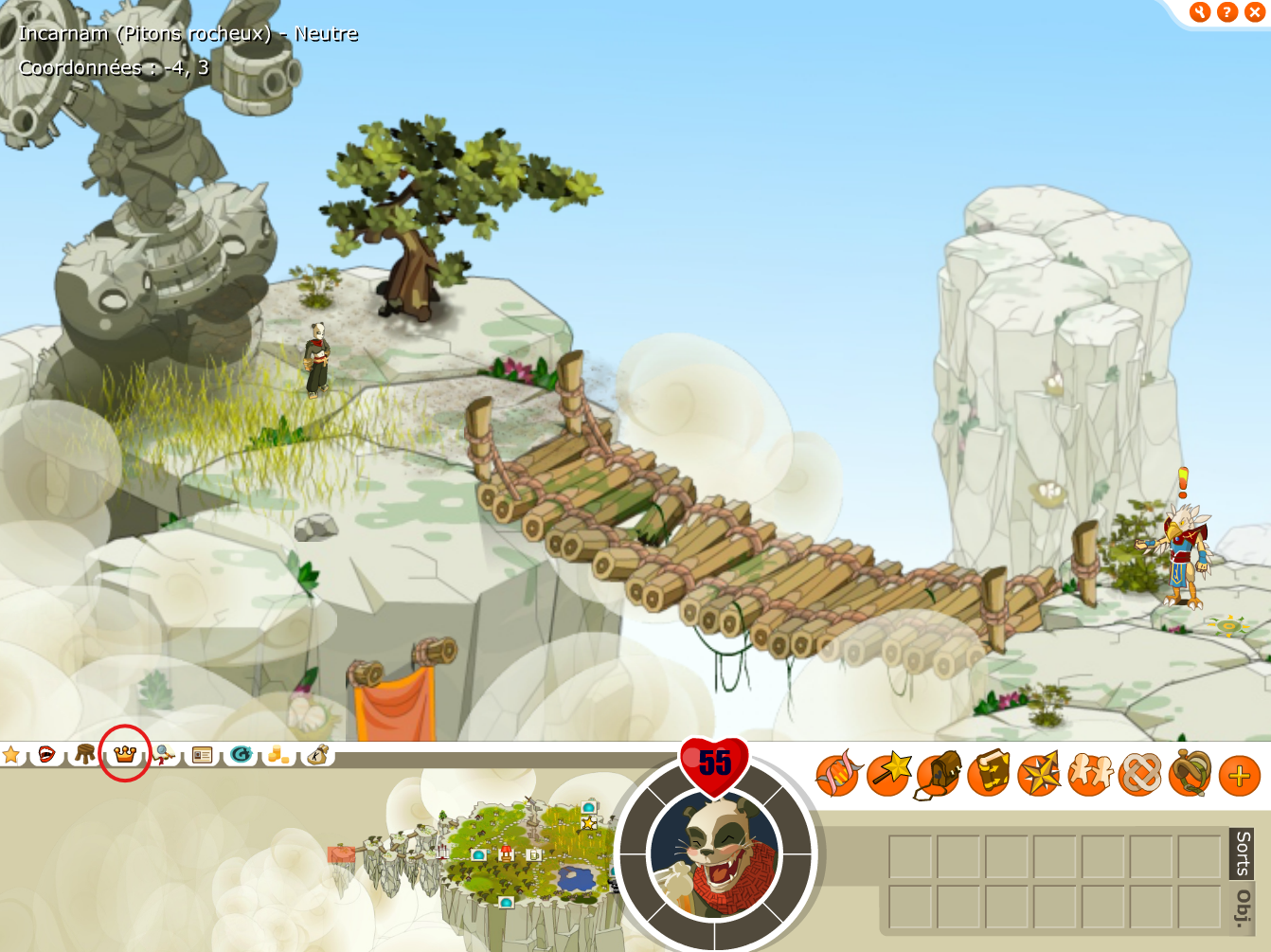
8. In Incarnam, open hero mode
You arrive in Incarnam. In the bottom bar on the left, click the crown circled in red in the screenshot: this opens hero mode. Outside combat, F1 also opens this window.
Your main character is in the game. Continue to create your heroes, save your team and prepare for your first fight.
Continue: create my heroes →